

Certificate Warning
Why do I see a security / certificate warning?
When you install Golf Shot Analytics on Windows, you may see a warning such as “Windows protected your PC” or a message about an unknown publisher.
This happens because:
-
Golf Shot Analytics was recently acquired by Nuco LLC
-
We had to switch to a new code-signing certificate
-
Microsoft SmartScreen uses a reputation system – new certificates have little or no reputation at the beginning, even if they are completely safe
As soon as more users have installed the app with this new certificate, Microsoft will gradually recognise it as trusted and the warning will disappear.
Important:
You should only proceed with the installation if you downloaded the installer directly from our official website or a trusted link from us.
How to install Golf Shot Analytics on Windows (step by step)
Follow these steps to install the app even if you see a warning:
1. Download the installer
-
Click the download button on our website.
-
Save the installer file (e.g. GolfShotAnalytics_Installer.exe) to your computer.
2. Locate the downloaded file
-
Open your Downloads folder (or the folder where your browser saves files).
-
Find the Golf Shot Analytics installer file.
3. Start the installer
-
Double-click the installer file.
-
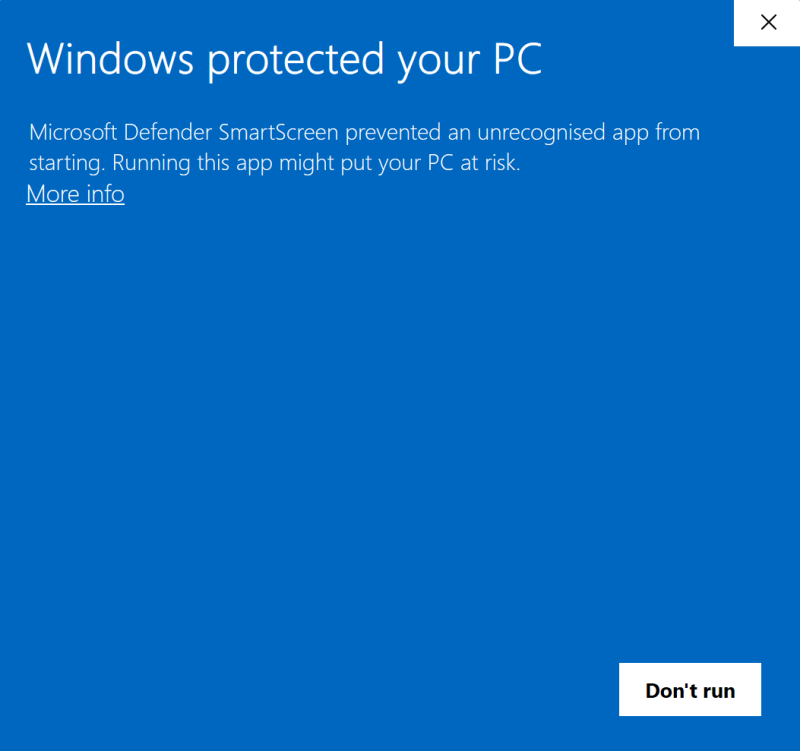
Windows may show a “Windows protected your PC” or similar SmartScreen warning.
4. Show more information
-
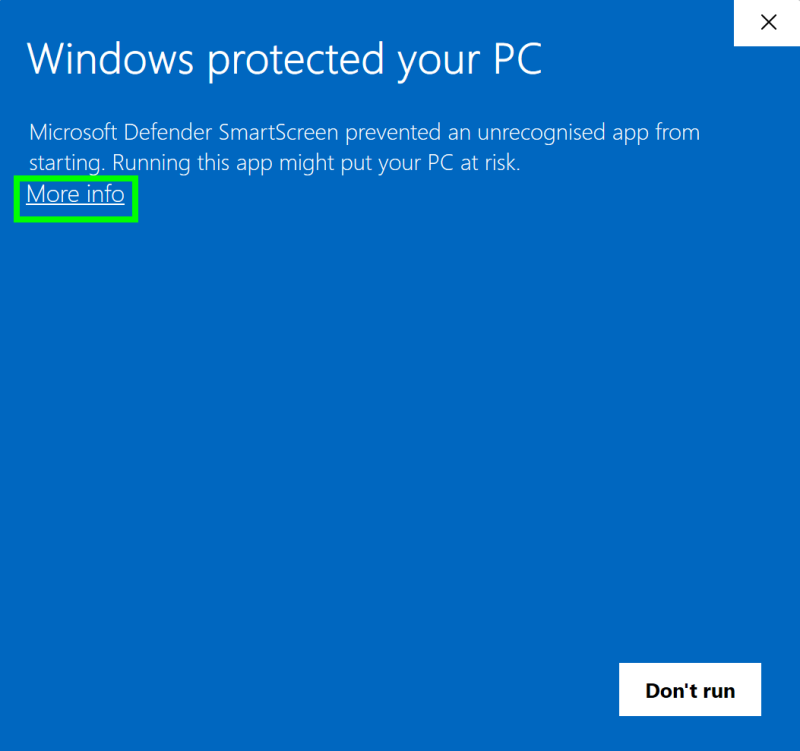
In the warning window, click on “More info”.
5. Confirm and run the installer
-
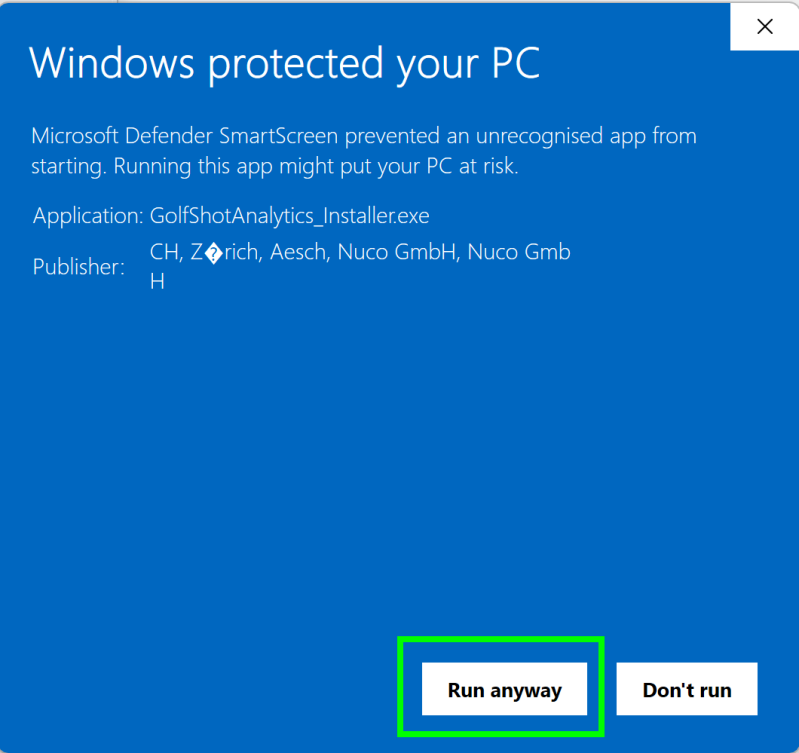
After clicking “More info”, you will see additional details, including the publisher (e.g. Nuco LLC).
-
Click “Run anyway” to start the installation.
6. Confirm the Windows security prompt (UAC)
-
If Windows asks “Do you want to allow this app to make changes to your device?”, click “Yes”.
You may need administrator rights on your computer.
7. Complete the setup wizard
-
The Golf Shot Analytics setup wizard will open.
-
Click Next
-
Choose the installation folder (or keep the default)
-
Click Install
-
When finished, click Finish
-